Quick battle and Custom battle
Restart and Retreat
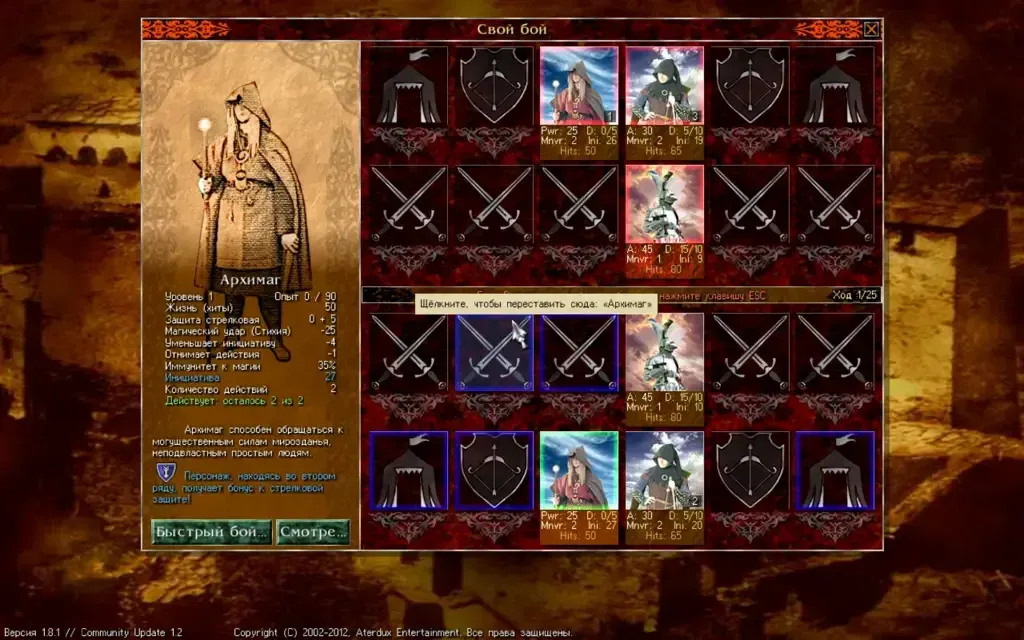
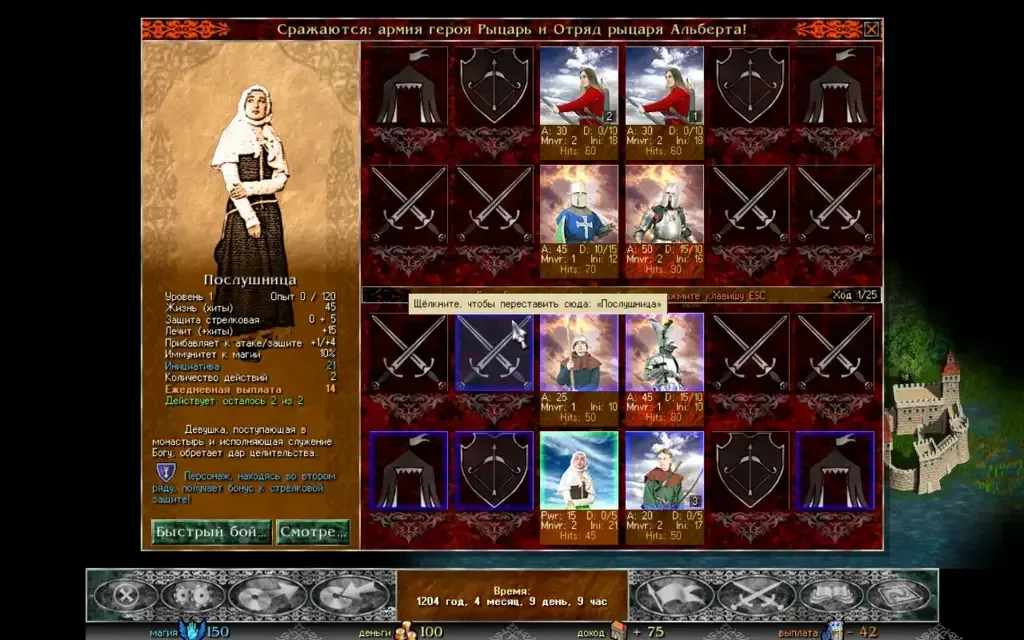
Section titled “Restart and Retreat”A Razdor addition. The leave-battle window (Esc, “Ways out of the battle”) has buttons that a normal battle does not:
- “Restart”: start this battle again, from its beginning. The battle begins at once again, as any battle does, with no arrangement.
- “Retreat”: leave the battle at any moment the game allows it (not in a battle for a building, a siege or a defence, and not in a battle a scenario event started). The battle is undone, as if it had not been fought: no experience and no loot, the armies and their losses are as they were at the start, the hero goes back to the cell he came from, and the enemy army does not attack for two game hours. The chronicle and the totals still count the battle as lost, with no losses on either side.
Quick battle
Section titled “Quick battle”A Razdor addition, like auto-battle in other strategy games. When a battle has opened and nobody has moved yet, “Quick battle (Q)” (Q or Enter) plays it out for both sides with the battle AI. If the battle is already under way, “Finish automatically (Q)” (Q) plays out the rest.
- Rules: your units play by the same rules as the AI: one reserve move per turn, never back to the reserve.
- Result: the totals window appears at once. The battle counts in full: losses, experience and levels, loot, captured castles, later events.
- Watch: the
Wkey starts watching on the battle screen. The AI plays both sides, turn by turn, with the usual animation. - Speed:
Sor the speed button switches between 1×, 2× and 4×.
Custom battle
Section titled “Custom battle”“Custom battle” in the corner of the main menu opens the battle setup outside any campaign.
- Units: on the “Unit types” tab on the left, click a type to add it to the army (the army is outlined in gold). The formation has up to 12 cells. Your army is at the bottom of the screen, the enemy army at the top.
- Levels: set each unit’s level from 1 to 30 with the
−and+buttons. - Items: click a unit to open the “Items” tab. The buttons at the top show one kind (weapons, armour, helmets, shields, rings, amulets), and the “Price” button sorts by price. The filter field (click it or press
Ctrl+F) searches items by words.
Battle settings
Section titled “Battle settings”Before the fight, press “Fight! (Enter)” (Enter). You can set:
- Formation: the wide row of 6, or the normal 3 × 4;
- Battle AI strength: normal, improved or “Maximum (Razdor)”;
- Control: for each side, you or the AI.
The totals window offers “Again (Enter)” (Enter), “Change armies (Esc)” (Esc) and “Main menu”.
Battle code
Section titled “Battle code”You can pass your battle setup to another player as a text string.
- Press “Copy the battle code” (or
Ctrl+C). A line likeRZB1:…goes to the clipboard. - The other player pastes it in their battle window with “Paste the battle code” (or
Ctrl+V).